Learning portal · learn.competitivekids.org
Create your CKSTEM account
Sign in with a Google or Microsoft account you already have, then fill in one short form. About three minutes, and no new password to remember.
Before you start
-
A Google or Microsoft account
A school account or a personal Gmail / Outlook address — either one works. You will not be creating a new CKSTEM password.
-
The student’s own email, not a parent’s
Course access, badges, certificates and contest results all attach to this account. Set it up under a parent’s email and they are issued in the parent’s name — they cannot be moved across afterwards.
-
The parent’s name, phone, email and mailing address
The portal asks for all four before it will let the student in, because medals and certificates are posted out. Have them to hand and the whole thing takes about three minutes.
The five steps
-
Open the learning portal
Go to learn.competitivekids.org. The username and password boxes at the top are only for students whose school handed them a username. If nobody gave you one, ignore them and look below the “Log in” button, where the page says you can register using a Google or Microsoft account.
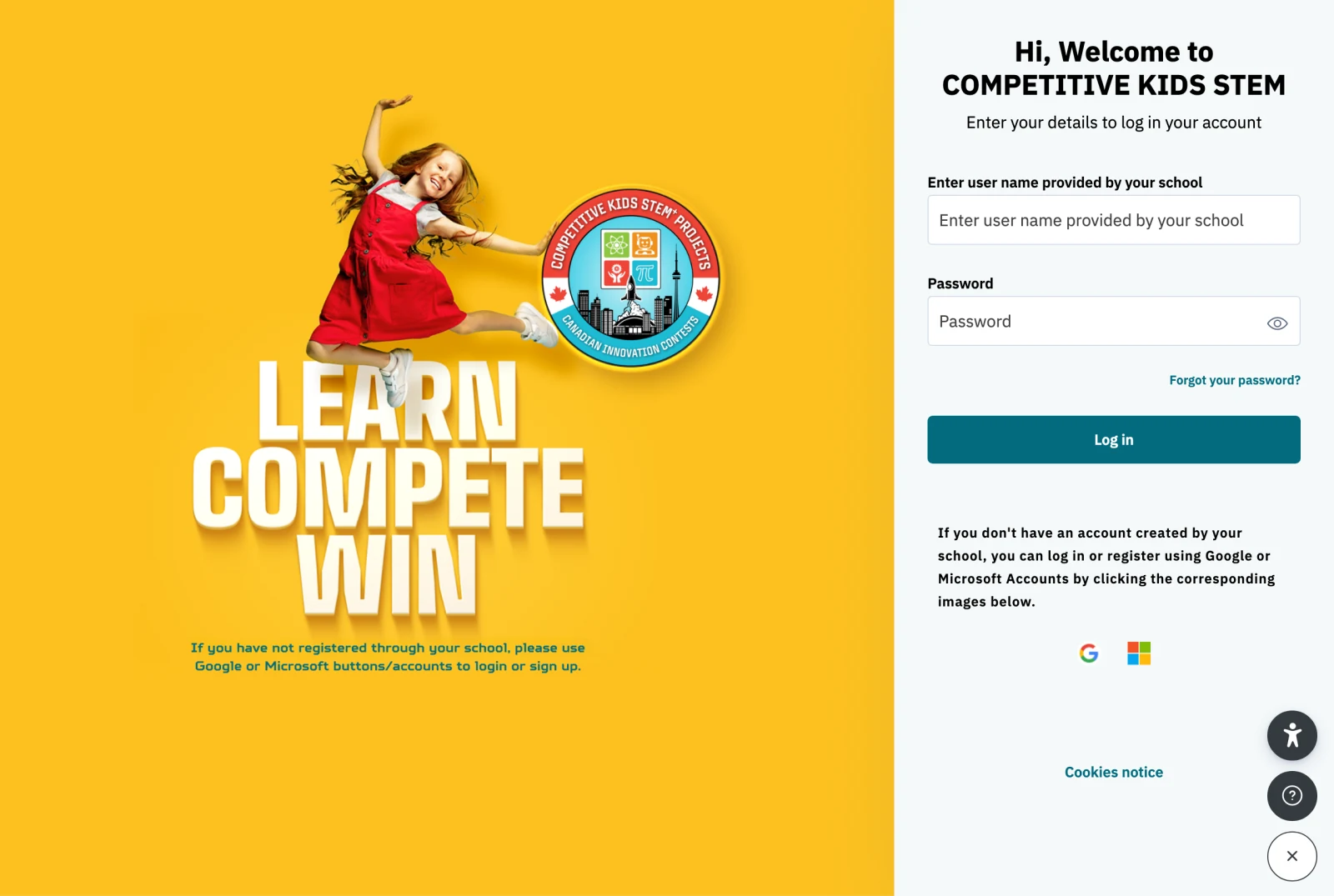
The two sign-up icons sit at the very bottom of the panel, under the “Log in” button. -
Click Google or Microsoft
These icons both create the account and log you in — there is no separate registration form to hunt for first. Pick whichever matches the email address you want the account to live on.
Use Google if…
your address ends in @gmail.com, or your school email opens in Gmail (a Google Workspace school).
Use Microsoft if…
your address ends in @outlook.com or @hotmail.com, or your school email opens in Outlook or Teams (a Microsoft 365 school).

Google on the left, Microsoft on the right. They are smaller than you expect. -
Sign in with that account
Google or Microsoft now asks for their email and password — not a CKSTEM one. Before typing anything, check that the page says it is continuing to competitivekids.org. If it names a different site, close the tab and start again from step 1.
The first time an account is used here, Google or Microsoft also asks whether CKSTEM may see your name and email address. Say yes — that is all we receive, and it is what puts the student’s name on their certificates. The password stays with Google or Microsoft; CKSTEM never sees it.
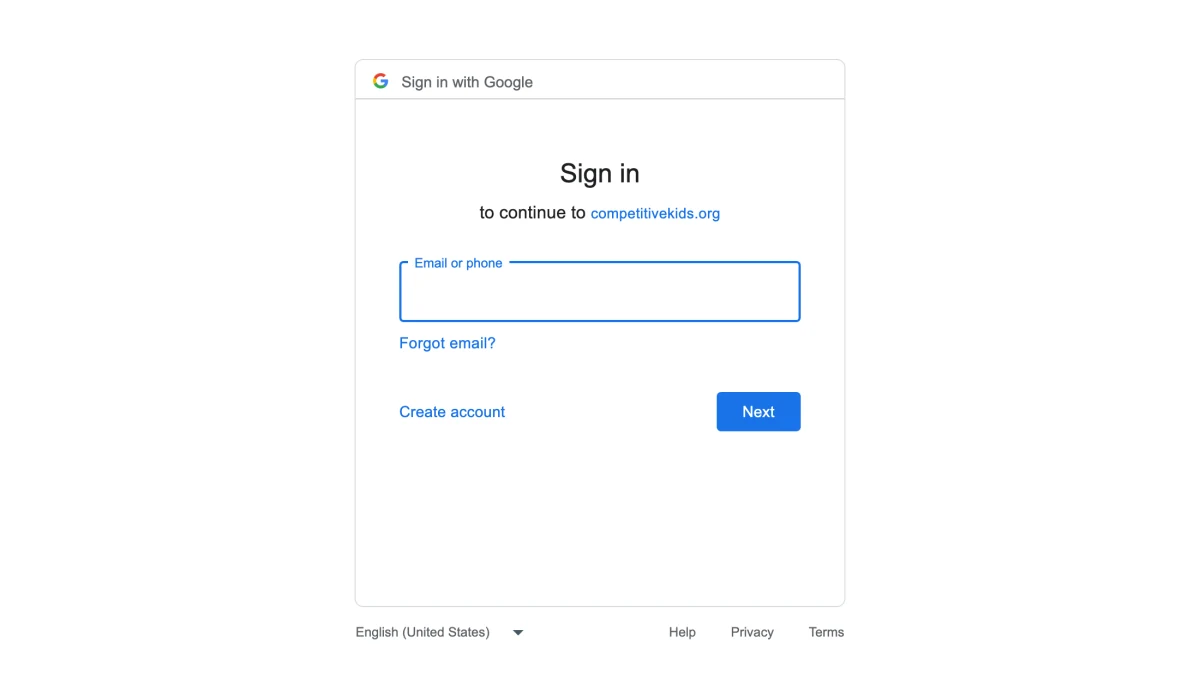
Google names the site it is signing you in to: competitivekids.org. 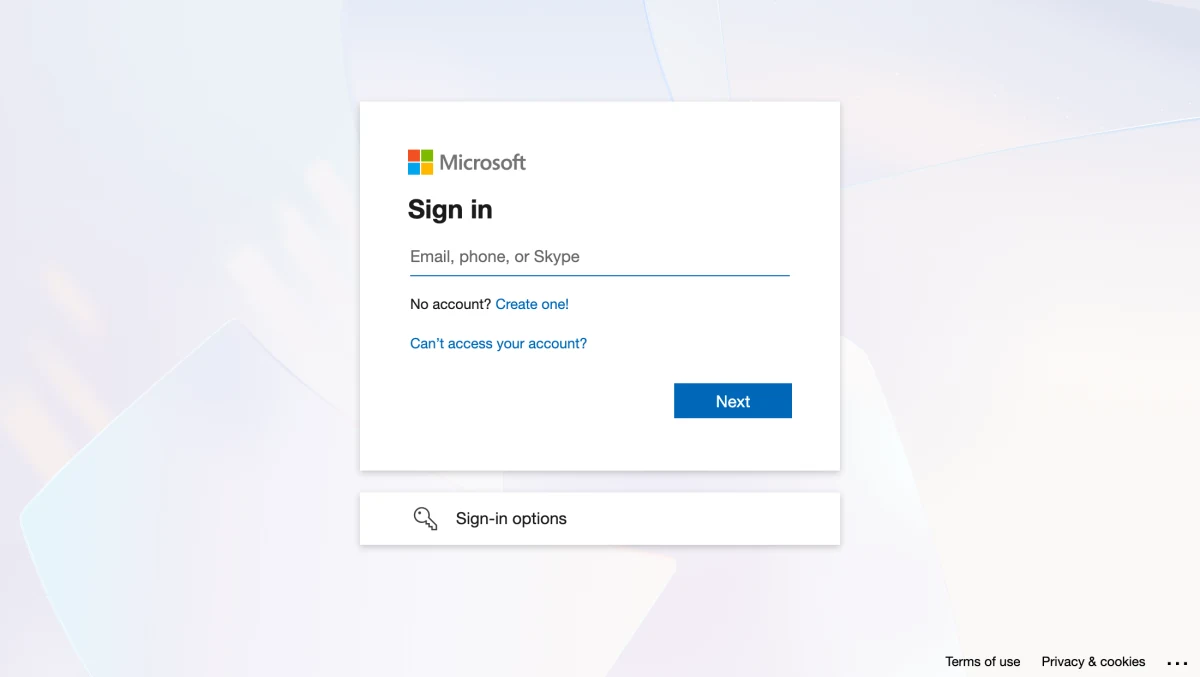
Microsoft shows its standard sign-in card. -
Fill in the details the portal asks for
You now land on a form with a section headed “Please Fill Mandatory Fields To Continue”. This is not paperwork you can put off — until it is saved, the portal keeps bringing you back to it. Anything with a small red beside its label is required.
Each pair below shows the same section twice: on the left what you land on, on the right the same section filled in. Every name, address, phone number and email in the filled-in version is made up — copy the shape, not the details. Tap any picture to open it full size.
General — your name and email
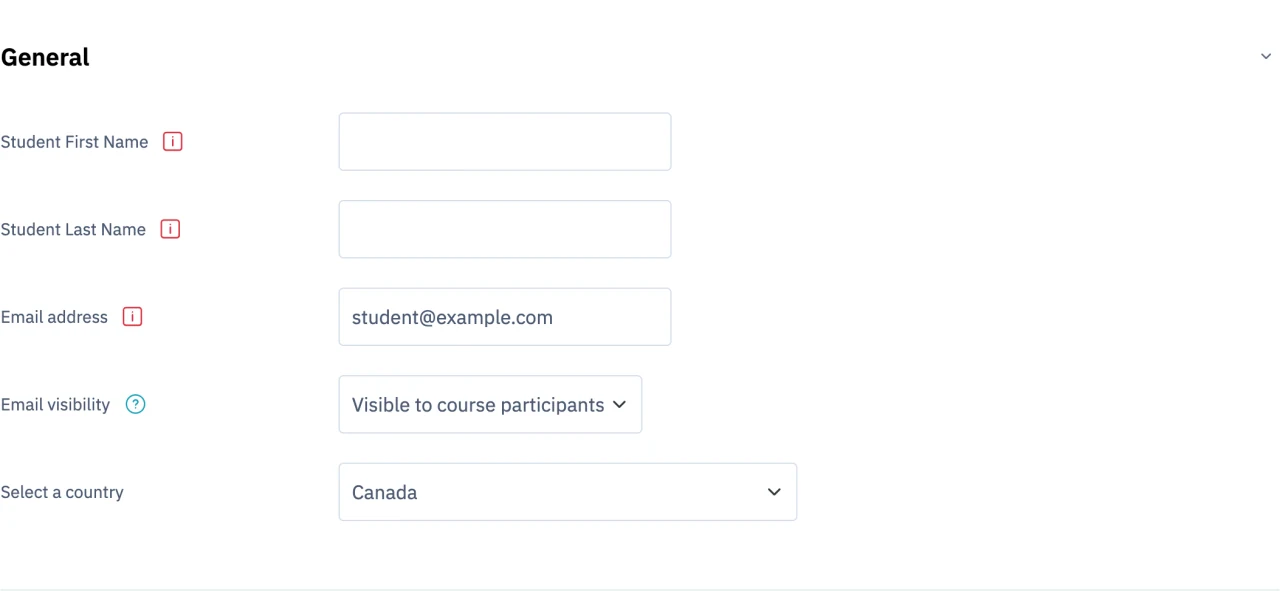
As you find it. The email is already filled in from your Google or Microsoft account — the address shown is only an example. 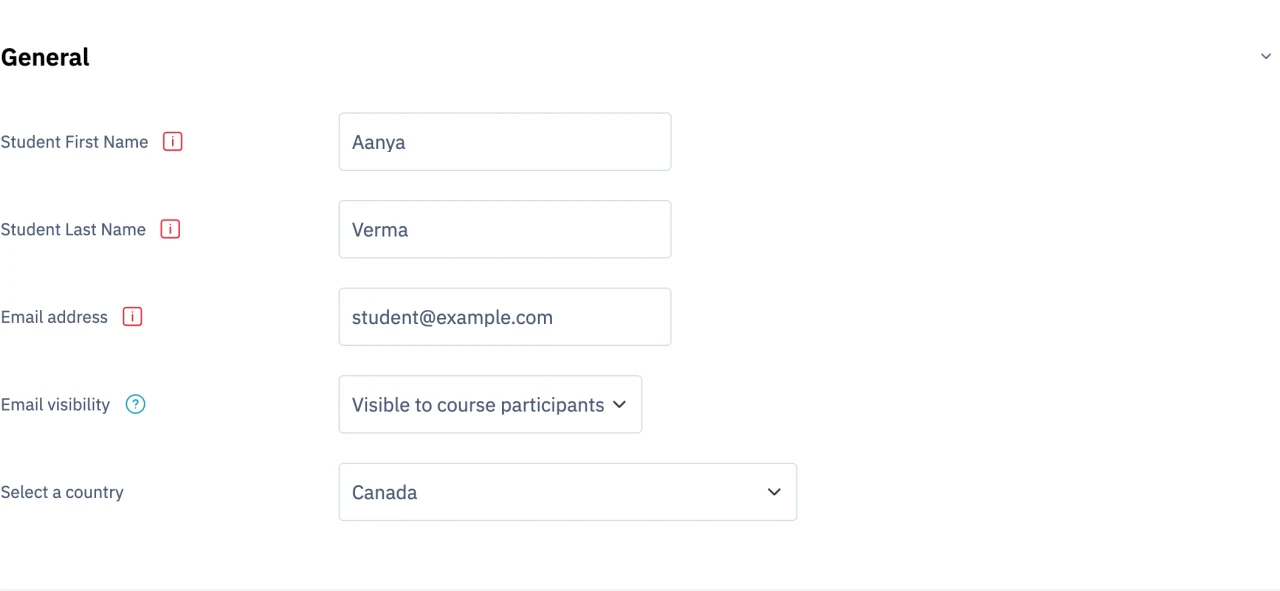
Filled in. The student’s own first and last name go here — not a parent’s. The one thing that catches everybody: two drop-downs open on a placeholder instead of a real value — School Grade starts on “Other”, and School’s Country starts on “Choose…”. Leave either as it is and the form quietly comes back instead of saving.Please Fill Mandatory Fields To Continue
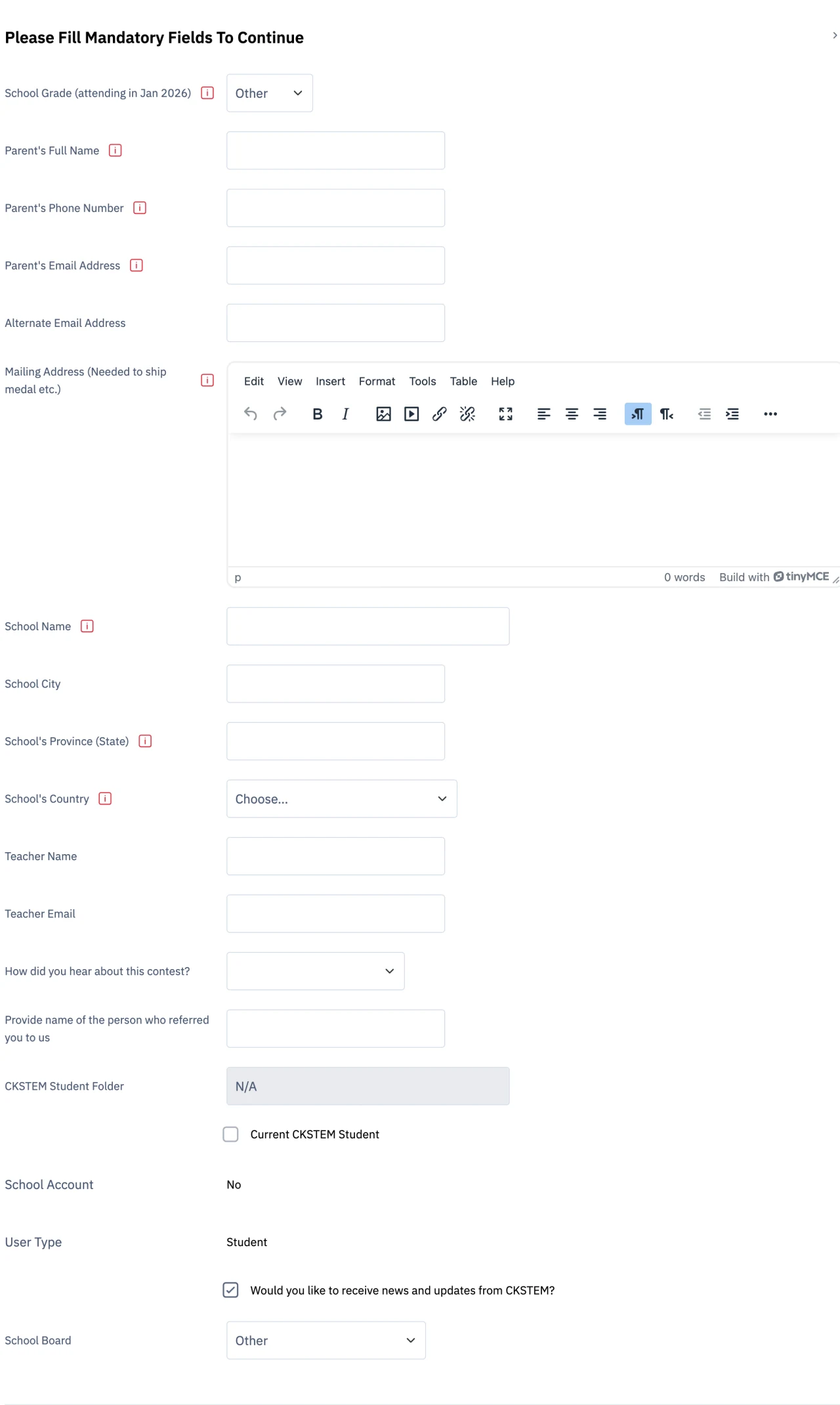
As you find it — School Grade on “Other”, School’s Country on “Choose…”. 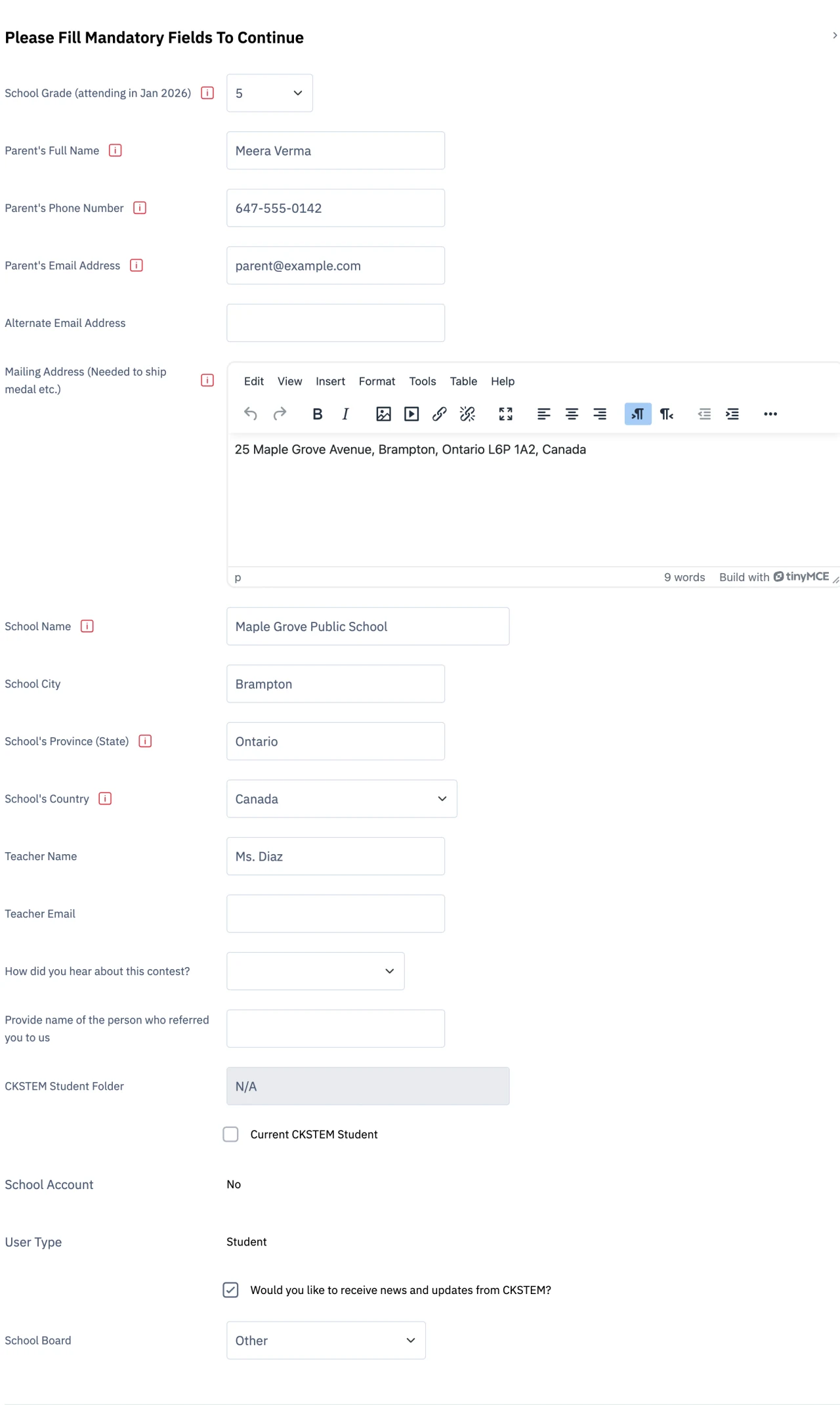
Filled in — real grade picked, country picked, and the full postal address typed into the Mailing Address box. General
Field Needed? What to put Student First Name Required The student’s own name. This is the name printed on certificates. Student Last Name Required — Email address Required Already filled in from the Google or Microsoft account. Leave it alone. Email visibility Optional Leave it on “Visible to course participants”. City/town · Select a country · Timezone Optional Moodle’s own fields. Safe to skip — the school address further down is the one we use. Please Fill Mandatory Fields To Continue
Field Needed? What to put School Grade Required A drop-down that opens on “Other”. Pick the real grade — the form keeps coming back until you do. Parent’s Full Name Required — Parent’s Phone Number Required The number we call if something goes wrong on a contest day. Parent’s Email Address Required Where invoices, class notices and contest results are sent. Mailing Address Required A rich-text box with its own small toolbar — just type the address into it. Street, city, province and postal code; medals are posted here. School Name Required Written out in full — “Maple Grove Public School”, not “MGPS”. School’s Province (State) Required — School’s Country Required A drop-down that opens on “Choose…”. This one has to be changed too. Alternate Email Address Optional Worth adding if the main address is a school one that gets switched off over the summer. School City · Teacher Name · Teacher Email Optional Add them if you know them — a teacher’s name helps us group entries from the same school. How did you hear about this contest? · Referred by Optional — School Board Optional Leave it on “Other” if your board is not listed. -
Press “Update profile”
The teal Update profile button sits at the bottom of the form, and also on a small bar that follows you down the page. Press it and you land on your Home page. If the form reappears instead, scroll up — the field it is unhappy about is flagged in red.
If the portal asks you to agree to the CKSTEM site policies, tick the boxes and carry on. A profile picture can be added afterwards — the portal only allows one once the required details are saved.
That’s the account done. It does not enrol you in anything by itself: a coach adds your courses once your registration is processed, or you click through from a course page. If a course you have paid for is still missing after one business day, email us.
If something goes wrong
My school already gave me a username. Should I still do this?
No. Use the username and password your school gave you, in the top half of the login screen. Signing in with Google or Microsoft instead would create a second, separate account — your courses, your past work and your contest results would all stay on the first one, and the new one would look empty.
It says my email address is already in use.
An account already exists for that address, usually one a coach set up for you. Use “Forgot your password?” on the login screen to get into it rather than making a new one. If the reset email never arrives, write to [email protected] with the address you tried.
Should the student use a school email or a personal one?
Either works, but a personal Gmail or Outlook address is the safer choice. School accounts are usually switched off when a student changes school or graduates, and access to past certificates and contest results goes with them.
Does CKSTEM see my Google or Microsoft password?
No. The password is typed on Google’s or Microsoft’s own page, and all they pass back to us is a name and an email address. We never receive it, store it, or see it.
The form keeps reloading and will not save.
Two drop-downs open on a placeholder rather than a real value — School Grade starts on “Other” and School’s Country starts on “Choose…”. Until both are changed the form comes straight back. After pressing Update profile, scroll up: whatever it is still unhappy about is flagged in red.
I am in, but I cannot see my course.
Creating the account does not enrol you in anything. A coach adds enrolment once your registration is processed, or you click through from a course page. If you have registered and paid and a course is still missing after one business day, email [email protected] with the student’s name.
Can a parent set the account up under their own email?
It works, but we do not recommend it. Certificates, badges and contest results are issued to the account holder, so they end up in the parent’s name — and they cannot be transferred to the student later.
Still stuck?
Email [email protected] with the student’s name, the email address you were trying to use, and which of the five steps you got to. That is usually enough for us to fix it without a phone call.
Open the portal